
KuToko Template Settings
A complete guide to configuring the KuToko template after it has been installed on your blog.
Prerequisites
Make sure you already understand the basics of Blogger, such as creating posts, static pages, and installing widgets. This guide focuses on template settings, not a beginner's Blogger tutorial.
Important Note
The Blogger platform is actually dedicated to blogs, not online stores. The KuToko template is a "hack" to utilize Blogger as an online store.
Settings List
| Setting | Description |
|---|---|
| Setting Code | Feature & WhatsApp configuration |
| Product Posting | How to create product postings |
| Article Posting | How to create article/blog postings |
| Product Widget per Label | Latest products per label |
| Popup Box | Promotional popup content |
General Settings: Menu · Social Media Icons · Logo, Footer, Favicon
Template Setting Code
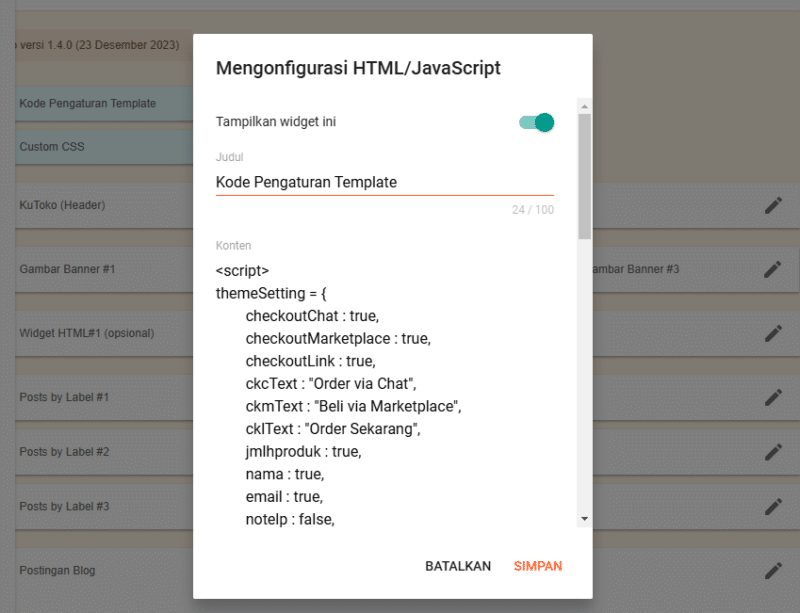
KuToko template features (including order buttons, chat, and WhatsApp numbers) can be customized using the setting code.
How to Create & Install
- Create setting code at KuToko Generator Tool
- Copy the generated code
- Open Layout in the Blogger dashboard
- Find the "Template Setting Code" widget → click Edit
- Paste the code in the Content section
- Click Save
How to Post Products
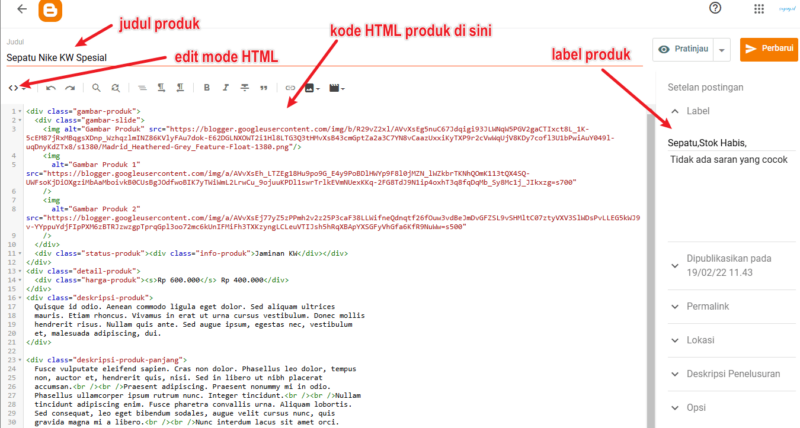
Product postings in KuToko are different from regular postings — they must use special HTML code.
Steps for Posting Products
Prepare the product image URL
- Upload the image first
- See the guide: How to Upload Images
Create product HTML code at KuToko Posting Tool
Create a new post
- Open the Blogger dashboard → New post
- Click HTML mode in the editor (not Compose)
- Paste the HTML code that has been created
- Click Publish
Marking Product Status
| Status | Label Used |
|---|---|
| Out of Stock | Stok Habis or Out of Stock |
| Pre-Order | Pre-Order (v.1.2.0+) |
How to mark:
- Edit the product post
- In the Labels section, add a label according to the status
- Click Update
Watch Video
How to Post Articles
Posting articles is the same as regular posting (without special HTML code).
Article Posting Requirements
Add one of the following labels:
| Valid Label |
|---|
Blog |
Artikel |
Articles |
Note
- The label name must be exactly the same (uppercase at the beginning)
- Article postings will appear on the homepage — set the date later than the product if you don't want it to appear
- The KuToko template is not optimized for many articles
Product Widget per Label Settings
This widget displays the latest products based on a specific label.
By default, if it hasn't been set, it will display a list of all the latest products with the title [NO LABEL].
How to Set Up
- Open Layout
- Find the Posts by Label #1 to #3 widget → click Edit
- In the Content section, fill in the label name you want
- Click Save
Make Sure the Label Exists
The label entered must already be used in a post. If there are no posts with that label, the widget will not display anything.
Watch Video
Installing Popup Box Content
The popup box can be used for promotions, announcements, or important information.
- Create popup code at KuToko Popup Tool
- Copy the generated code
- Open Layout
- Find the "Popup Box Content (HTML)" widget → click Edit
- Paste the code in the Content section
- Click Save
Custom Code
You can also use your own custom HTML code if needed.