
SastraPro Optimization
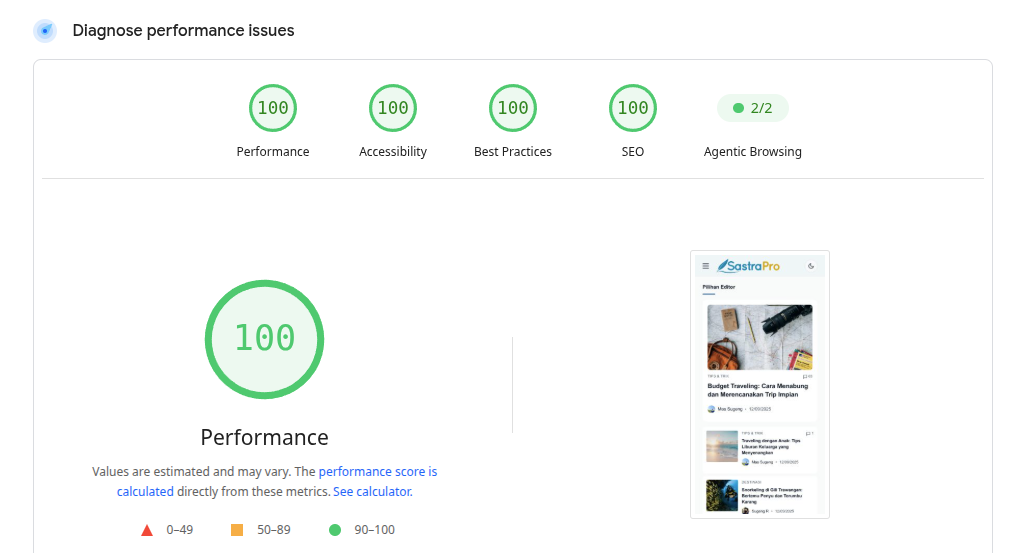
To maximize the performance of the SastraPro WordPress theme, we recommend using the following plugins. These plugins will help optimize images and speed up your website loading.
Don't Have SastraPro Yet?
See the SastraPro product page for features, demo, and purchase.
Recommended Plugins
1. Regenerate Thumbnails
Plugin: Regenerate Thumbnails by Alex Mills
This plugin is useful for recreating image thumbnail sizes according to the SastraPro theme settings. Highly recommended after:
- Installing the SastraPro theme for the first time
- Changing image size settings in WordPress
- Migrating from another theme
How to Use:
- Install and activate the Regenerate Thumbnails plugin
- Open the Tools > Regenerate Thumbnails menu
- Click the Regenerate Thumbnails for All Attachments button
- Wait for the process to complete
TIP
Run regenerate thumbnails only once after theme installation. Once finished, this plugin can be deactivated or deleted.
2. EWWW Image Optimizer
Plugin: EWWW Image Optimizer
This plugin automatically compresses images without reducing visual quality. Very effective for speeding up page loading.
Key Features:
- Automatic compression when uploading images
- Bulk optimize for existing images
- Conversion to WebP format
- Lazy loading images
Recommended Settings:
- Install and activate the EWWW Image Optimizer plugin
- Open the Settings > EWWW Image Optimizer menu
- On the Basic tab:
- Enable Remove Metadata to remove EXIF data
- Select the desired compression level
- On the WebP tab:
- Enable WebP Conversion for modern image format
- Click Save Changes
Attention
After activating the plugin, run Bulk Optimize via the Media > Bulk Optimize menu to compress existing images.
3. Autoptimize
Plugin: Autoptimize
This plugin optimizes CSS, JavaScript, and HTML files to speed up website loading.
Key Features:
- Minify and combine CSS files
- Minify and combine JavaScript files
- Minify HTML
- Lazy load images
- CDN integration
Recommended Settings:
- Install and activate the Autoptimize plugin
- Open the Settings > Autoptimize menu
- On the JS, CSS & HTML tab:
- Check Optimize JavaScript Code
- Check Optimize CSS Code
- Check Optimize HTML Code
- On the Images tab:
- Check Lazy-load images (if you are not already using lazy load from another plugin)
- Click Save Changes and Empty Cache
Important: do not check "Also defer inline JS?"
SastraPro injects a small inline script in <head> that reads the theme preference (data-theme) before the page renders, preventing a dark mode flash on load.
If you check "Do not aggregate but defer?" in the JavaScript Options section, the sub-option "Also defer inline JS?" will appear. Leave it UNCHECKED. Checking it makes Autoptimize defer all inline scripts, including the theme setter, so data-theme is applied only after the page is painted, causing a dark mode flash on initial load.
Summary:
- ☑ Do not aggregate but defer? safe to check (external JS stays deferred)
- ☐ Also defer inline JS? MUST stay unchecked
Advanced CSS settings (recommended)
In addition to the basic settings above, also enable:
- Aggregate all CSS files (JS, CSS & HTML tab): MUST be enabled. The Inline and Defer CSS option does not work when CSS aggregation is off; all CSS files are still loaded separately and block rendering.
- Inline and Defer CSS (JS, CSS & HTML tab): enable so CSS no longer blocks rendering. The browser no longer waits for CSS files to download before showing the page.
- Above the fold CSS field: can be left empty. When empty, all CSS is inlined into the HTML (slightly larger HTML, but no CSS request blocks rendering). When filled with critical CSS (above-the-fold styles), the rest loads asynchronously so the HTML stays lean.
TIP
After activating Autoptimize, check your website's appearance. If there are problems, try disabling the Aggregate JS-files option or adding the problematic script to the exclusion list.
AdSense Ads and Analytics Script Optimization
Ads and analytics scripts are the most common cause of declining site performance. This section explains how to minimize their impact on SastraPro. For instructions on adding ad and script codes, see the SastraPro Configuration page.
What SastraPro Already Handles
- Ads do not shift content: AdSense ads load only after the page has finished loading.
- Faster connections to Google: connections to Google servers are prepared early.
- Ads inside articles: ads appear only on single post pages, with a configurable position.
- Custom Scripts: header (Google Analytics, Tag Manager) and footer (other scripts) fields in the Customizer, plus an option to disable jQuery.
AdSense Guidelines
- Limit the number of ad units installed. Recommendation: no more than 3 ads per page.
- Avoid ads at the very top of the page (above the fold). Best placements: inside the content and after the article.
- Disable AdSense Auto ads because placement is out of your control and can break the layout. Manual ad units are recommended.
Analytics Script Guidelines
- Do not install Google Analytics and Google Tag Manager together, pick one. Using both duplicates data and makes pages heavier.
- Put your GA4 (gtag.js) code in Customizer > Scripts > Header Scripts.
- If you only need visitor stats, use a lightweight analytics like Plausible or Umami.
Optimization Order
For optimal results, follow the order below:
- Regenerate Thumbnails - Run once, then deactivate
- EWWW Image Optimizer - Leave active for automatic compression
- Autoptimize - Leave active for asset optimization
- Ads & analytics optimization - Optimize as suggested above
Additional Tips
- Use quality hosting - Server performance greatly affects website speed
- Enable caching - Use a caching plugin such as WP Super Cache or W3 Total Cache
- Use a CDN - Content Delivery Network speeds up loading for visitors from various locations
- Update WordPress and plugins regularly - Updates bring performance and security improvements
- Test speed with PageSpeed Insights - Use https://pagespeed.web.dev to measure page performance and get improvement recommendations